How to authenticate domain with Zoho DMARC, DKIM and SPF?
Is your domain really protected?
Enter your domain to run a live DMARC check and see how easy it for others to spoof your domain.
No sign-up required. Safe to try on any domain.
Articles
- DMARC for non sending domains
- ARC Is Being Retired
- Manual DMARC Monitoring vs Automated Monitoring
- Reverse Engineering Phishing
- DMARC Enforcement in 2026
- Cyber Insurance and DMARC Enforcement
- TLS-RPT Record
- SMTP Smuggling
- DNS and NS
- 🇩🇪 Welche Hosting Anbieter unterstützen DMARC
- The impact of Business Email Compromise
- CEO Scam
- Email Verification
- What Is MTA-STS and Why It Matters Now
- A quiet Google update just made SPF more forgiving
- DMARC Dashboard now available on Azure Marketplace
- DNS Leak
- DMARCbis Adoption Has Started
- CNAME record
- DNS Check
- DMARC2 vs DMARC1
- DARA Records
- DKIM2 vs DKIM
- DMARC-Überwachung: Anbieter im Vergleich
- DMARC Built for Europe. Hosted in Germany.
- GoDaddy's DMARC address turns off Google reports
- Beste DMARC-Lösungen für kleine Unternehmen
- DMARC Setup Services in the UK: 2026 Guide
- Die erste deutsche dedizierte DMARC-Plattform
- Instant DMARC Reports
- DMARC record
- ARC - Authenticated Received Chain
- Click/Link Tracking
- DNS records
- DMARC-Dienstleister in Deutschland
- Cracking a 1024-bit DKIM Key
- Top 7 SPF Check Tools Compared 2026
- DNS Lookup
- Reverse DNS Lookup
- Der deutsche Bundestag hat ein Spoofing-Problem
- MX records
- Domain Authentication
- Ist meine E-Mail-Domain DMARC-konform?
- CNAME vs. A Records
- SOA records
- Understanding DMARC Reports
- Return-path record
- Email impersonation scams explained
- How to Implement DMARC for Email Security in UK
- Welche E-Mail-Sicherheitsdienste DMARC integrieren
Zoho Domain Authentication - DMARC, DKIM, SPF (2024 Guide)
DMARC (Domain-based Message Authentication, Reporting, and Conformance) is like a security stamp on your emails that tells email providers they're really from you and what to do if they're not.
DKIM (DomainKeys Identified Mail) adds a digital signature to your emails so recipients can check if they've been tampered with during delivery. SPF (Sender Policy Framework) is like a guest list for your emails, specifying which servers are allowed to send emails on your behalf to prevent spoofing and spam. By utilizing Zoho CRM's domain authentication services, you can generate DNS records that provide a distinct signature to your emails, effectively fortifying them against spam filters. In this guide, we'll walk you through the step-by-step process of setting up domain verifications in your Zoho CRM account.
-
After logging in to Zoho CRM, click on the Settings icon and go to Emails in the Channels box.
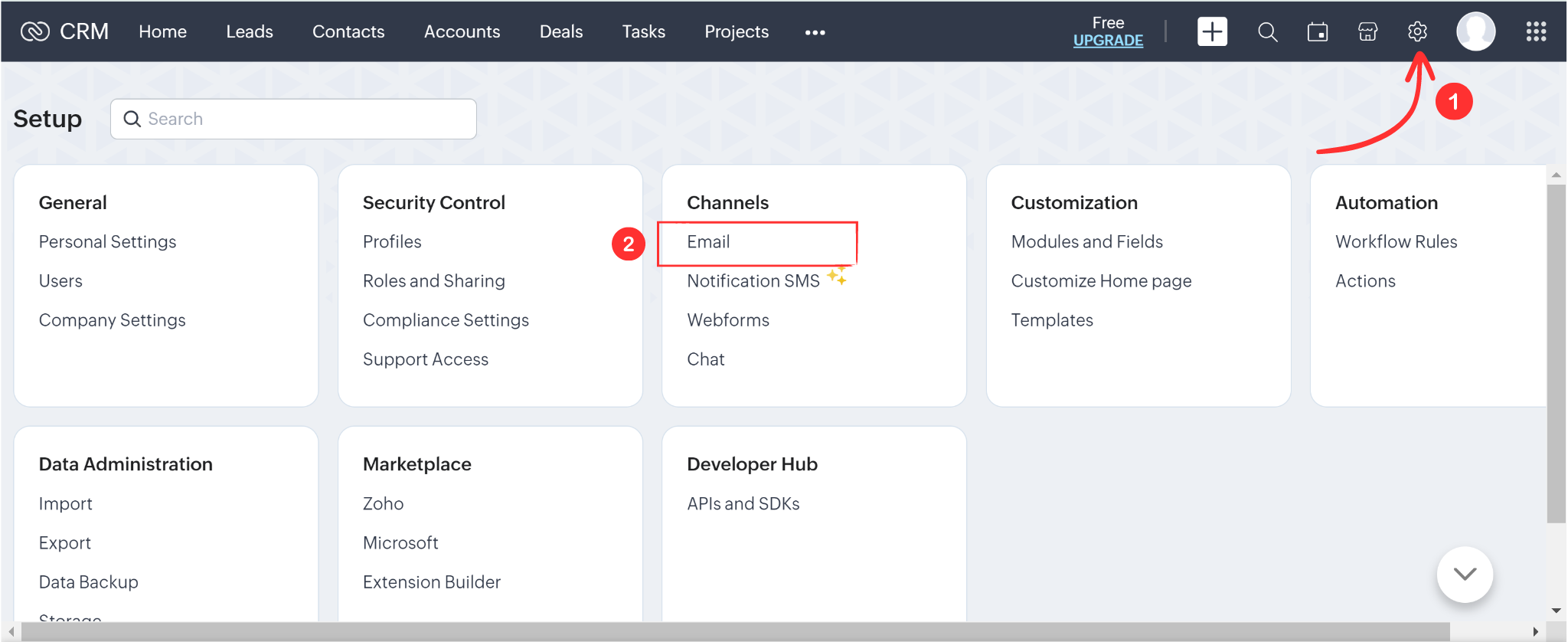
Head over to the Email Deliverability tab in the top menu.
-
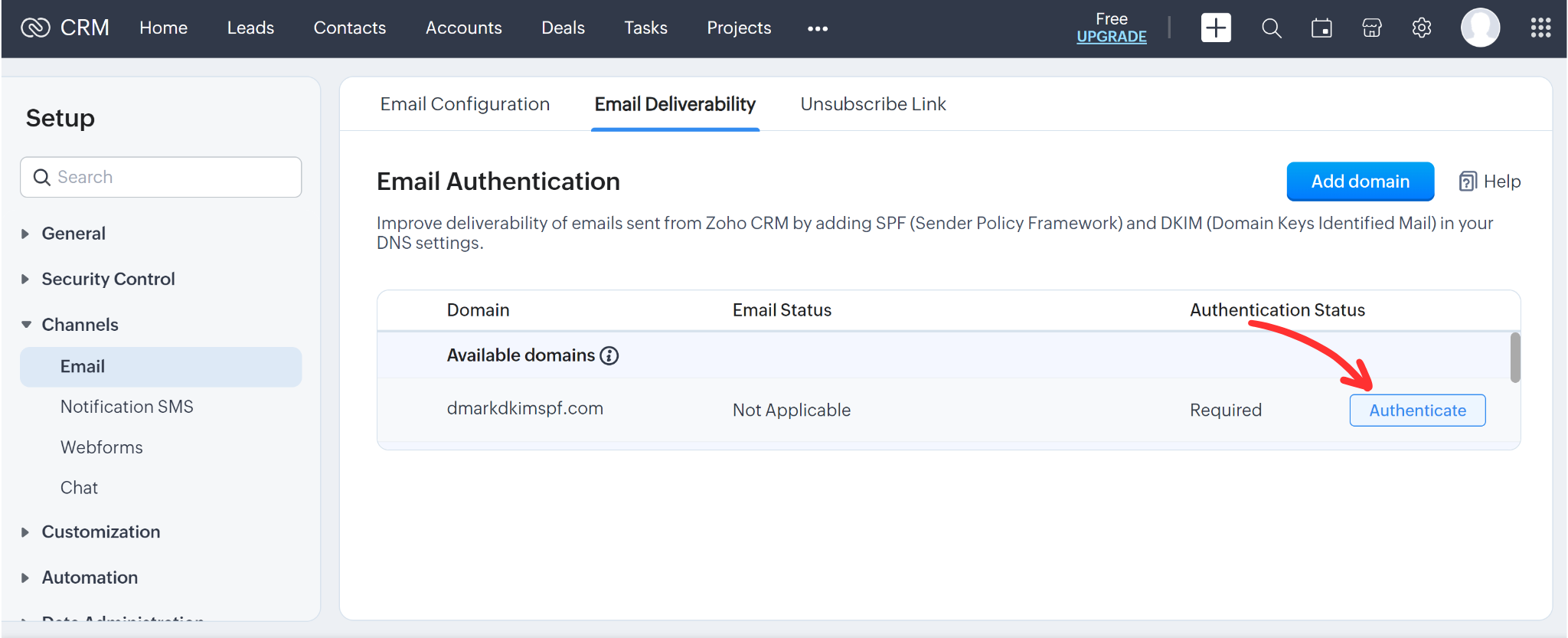
Here you'll see the email domain you used to sign up for the account. Hover the cursor over this domain and click Authenticate. (You can also add any other domain by clicking Add Domain highlighted in blue)
-
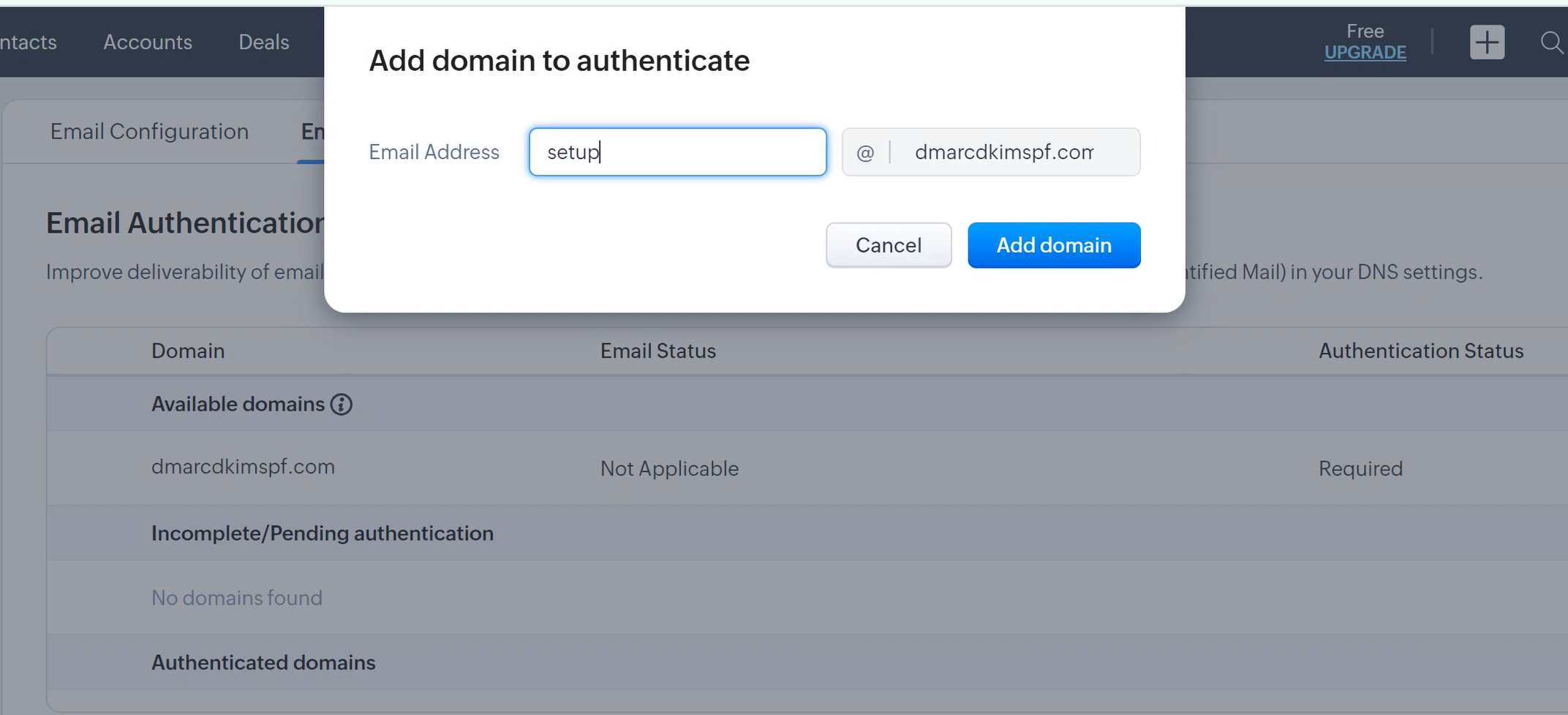
Next, enter your email (the part of your webmail before "@") in the pop-up window and click Add Domain.
-
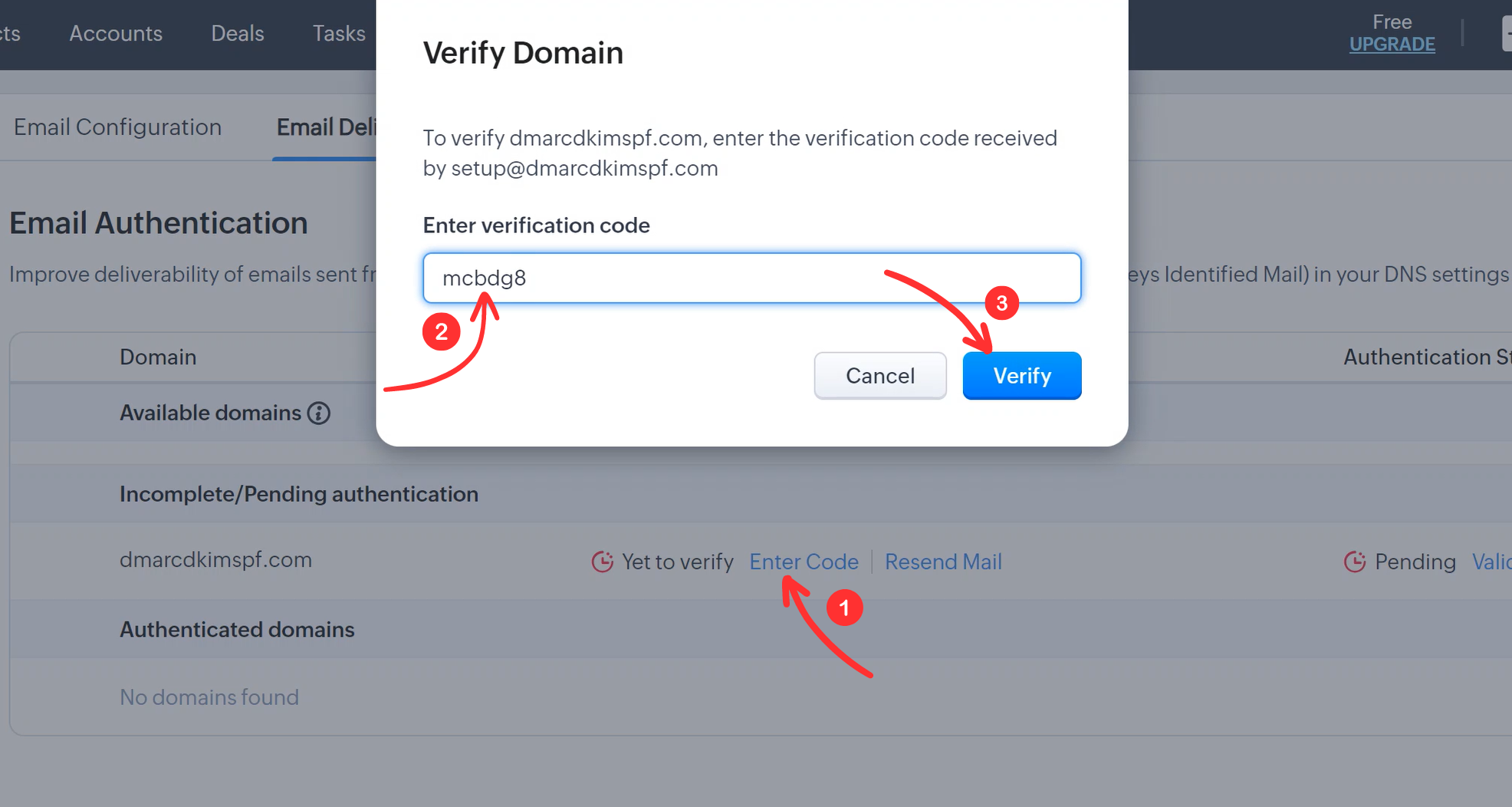
Zoho CRM will send a verification code to this email address. Copy the code from the email, click on "Enter code", paste this code, and click Verify. Your email status will be shown as "Verified" straight away.
-
Now click on "Validate records" under Authentication status.
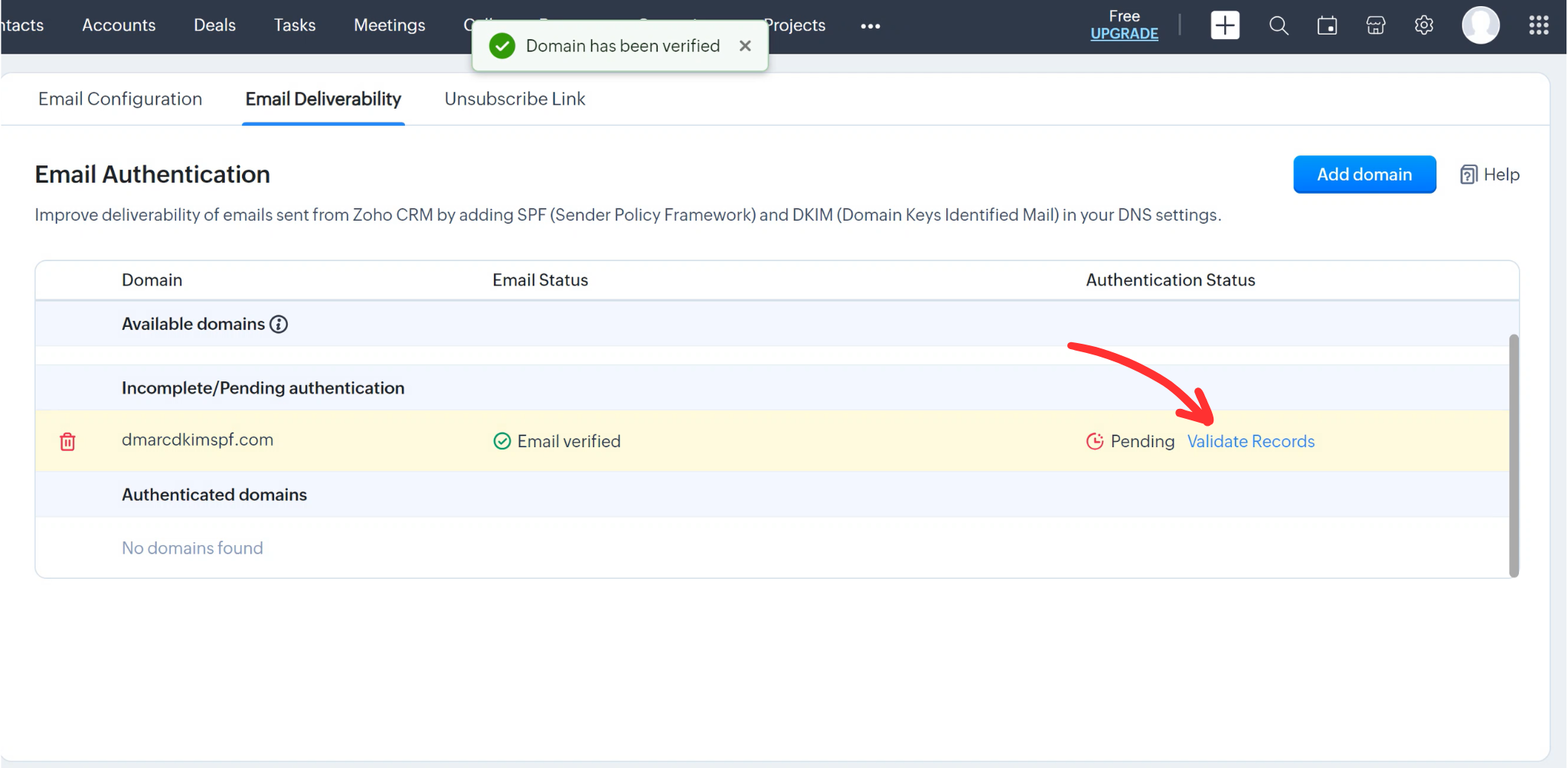
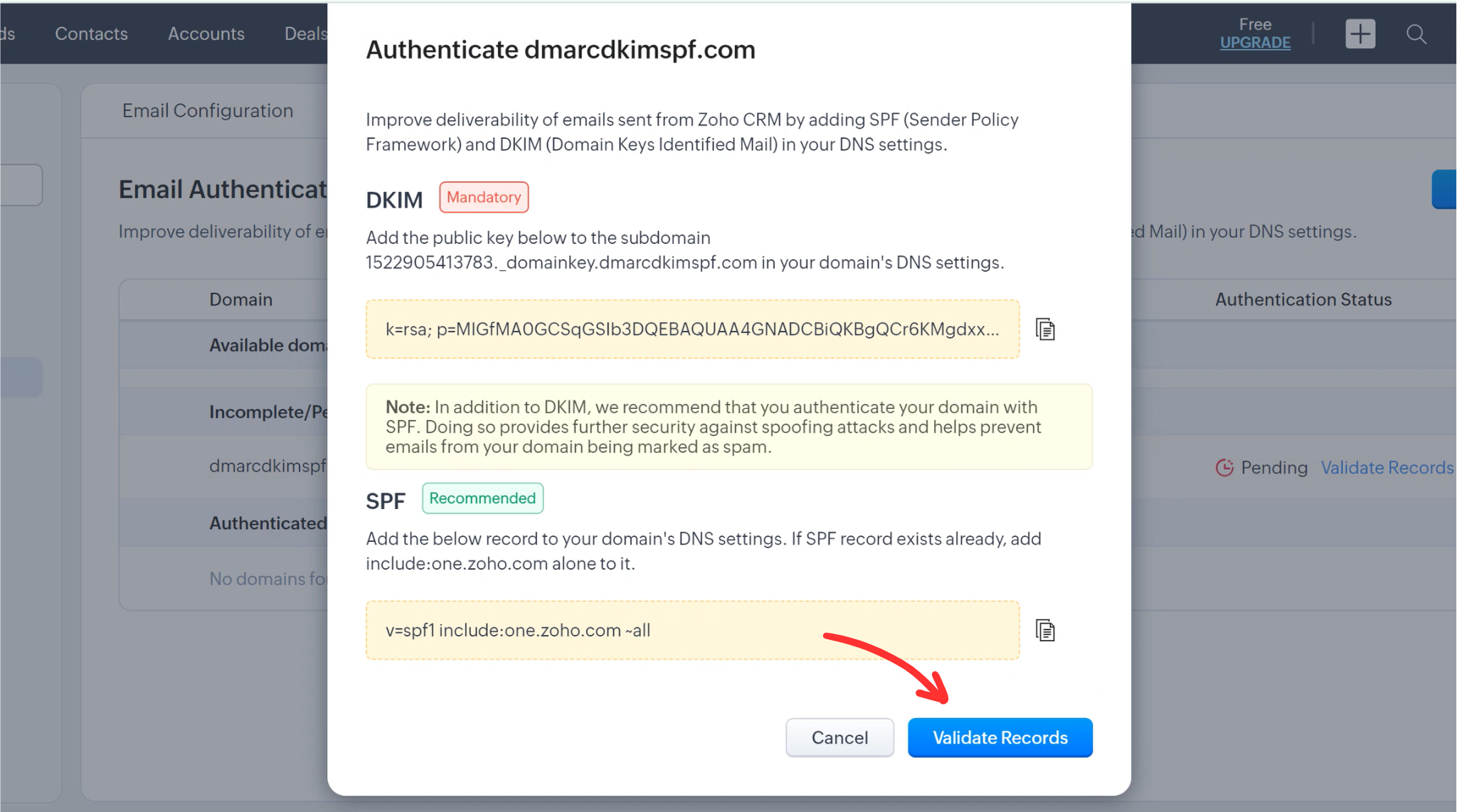
After that, you'll see Zoho DKIM and SPF records on a pop-up window. Copy these records and add them to your DNS provider.
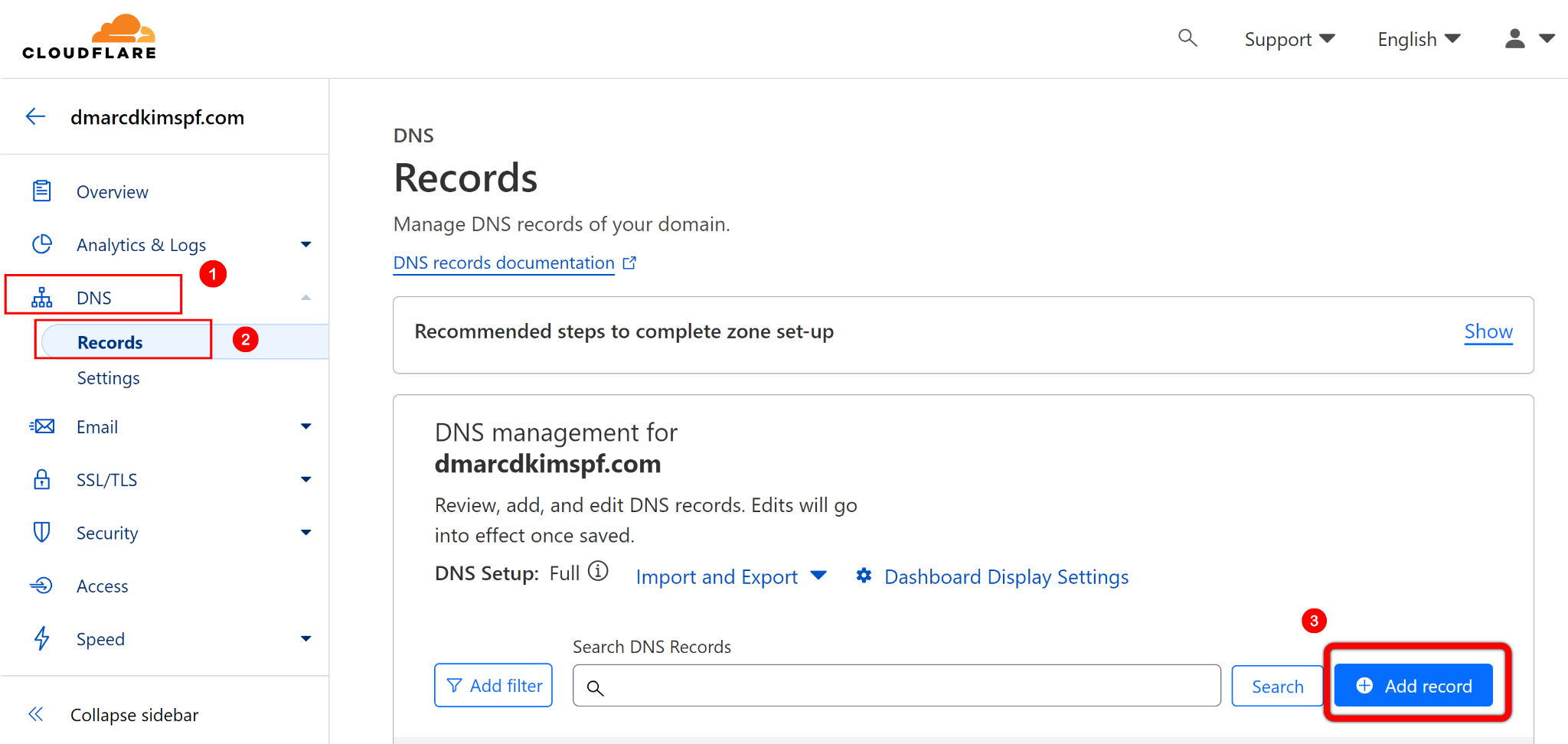
On the Cloudflare dashboard, go to the Home tab, and click on your Website.
Here, open DNS, select Records and click Add Record.
-
Write the SPF and DKIM record name and value here and click Save.
NOTE: Because Zoho CRM uses its own domain for the "Envelope From" address, SPF alignment might fail with the sender's actual "From address" domain during DMARC checks. To sort out this issue, use the DMARC Check tool.
-
Enter your domain in this tool and click Check. It will give you a suggested DMARC value that prevents SPF misalignment.

Copy this DMARC record name and value, and add it to your DNS provider.
-
Now go back to Zoho CRM and click on Validate Records.
-
After validation, you'll see your domain status as "Authenticated."


Check domain and follow the instructions to nail down your DMARC configuration.
No expert knowledge needed!